Campaigns
The Campaigns section is the default landing page of the GUI. It lists every campaign the current user is allowed to see, and provides entry points to configure new campaigns, edit existing scheduled configurations and drill into execution results.
Campaign list
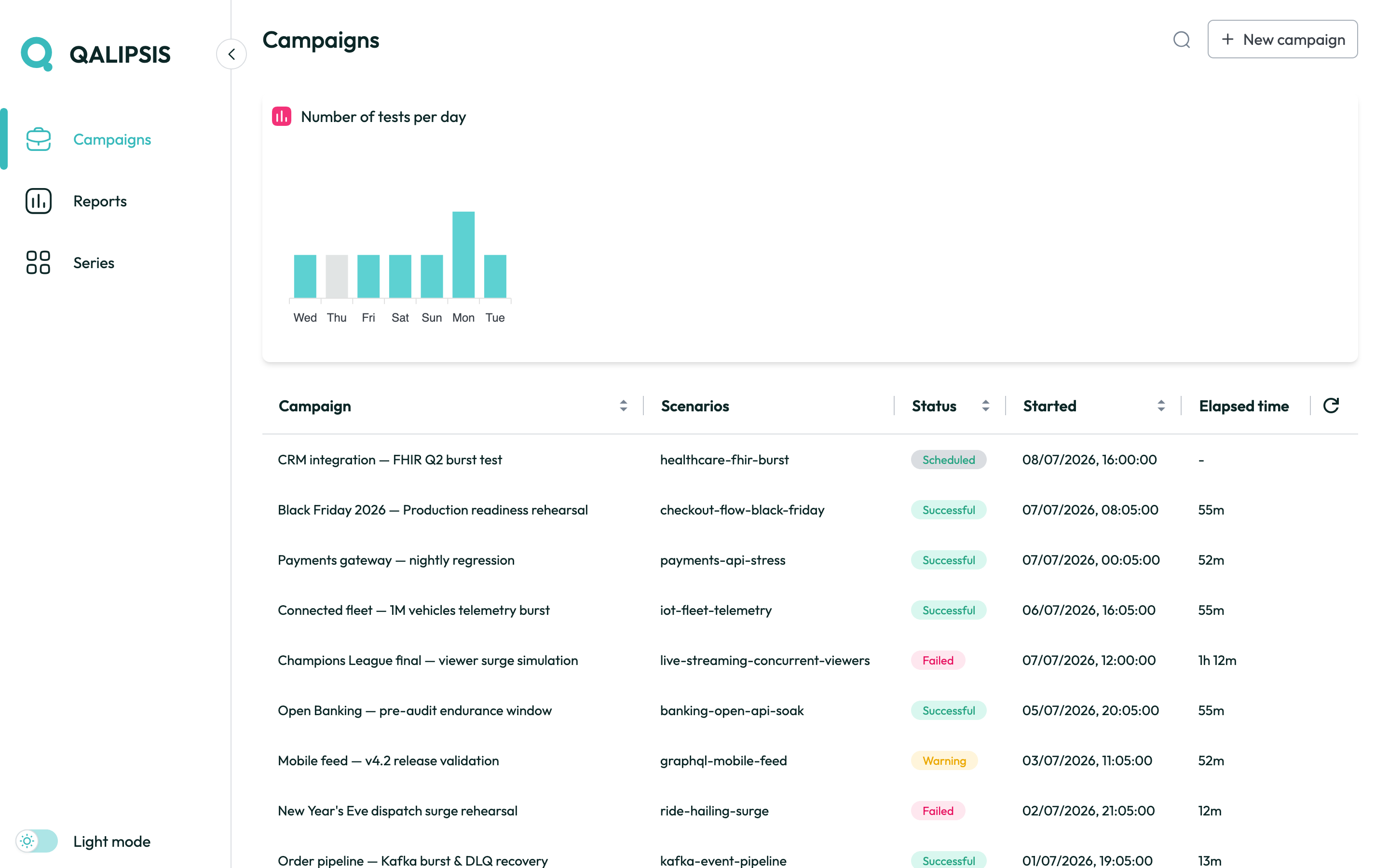
The list shows one row per campaign with:
-
Campaign name (human readable identifier).
-
Scenarios included in the campaign.
-
Current status —
SCHEDULED,IN_PROGRESS,SUCCESSFUL,WARNING,FAILED,ABORTED. -
Start timestamp — in the future when the campaign is scheduled.
-
Elapsed time — empty when the campaign is scheduled in the future.
Rows are clickable and open the campaign details. The top-right buttons let you filter the campaigns to list or start the new-campaign wizard.
Creating a campaign
Click New campaign from the list view. The configuration wizard walks through the campaign parameters and collects:
-
A name — free text identifying the campaign in reports and the list.
-
One or more scenarios, each with its own execution profile and zone distribution.
Click the cog on the right of each scenario to include and configure it individually.
Each scenario configuration includes:
-
Load stages — successive periods of load during the scenario execution, each defining the ramp-up - period of the stage when all the minions are linearly started - and how long the stage runs before the next one begins - or the execution ends.
-
Zone distribution — the percentage of minions spread across the different zones.
A chart visualizes the load stages over time for the scenario, so you can see how the load changes throughout the execution.
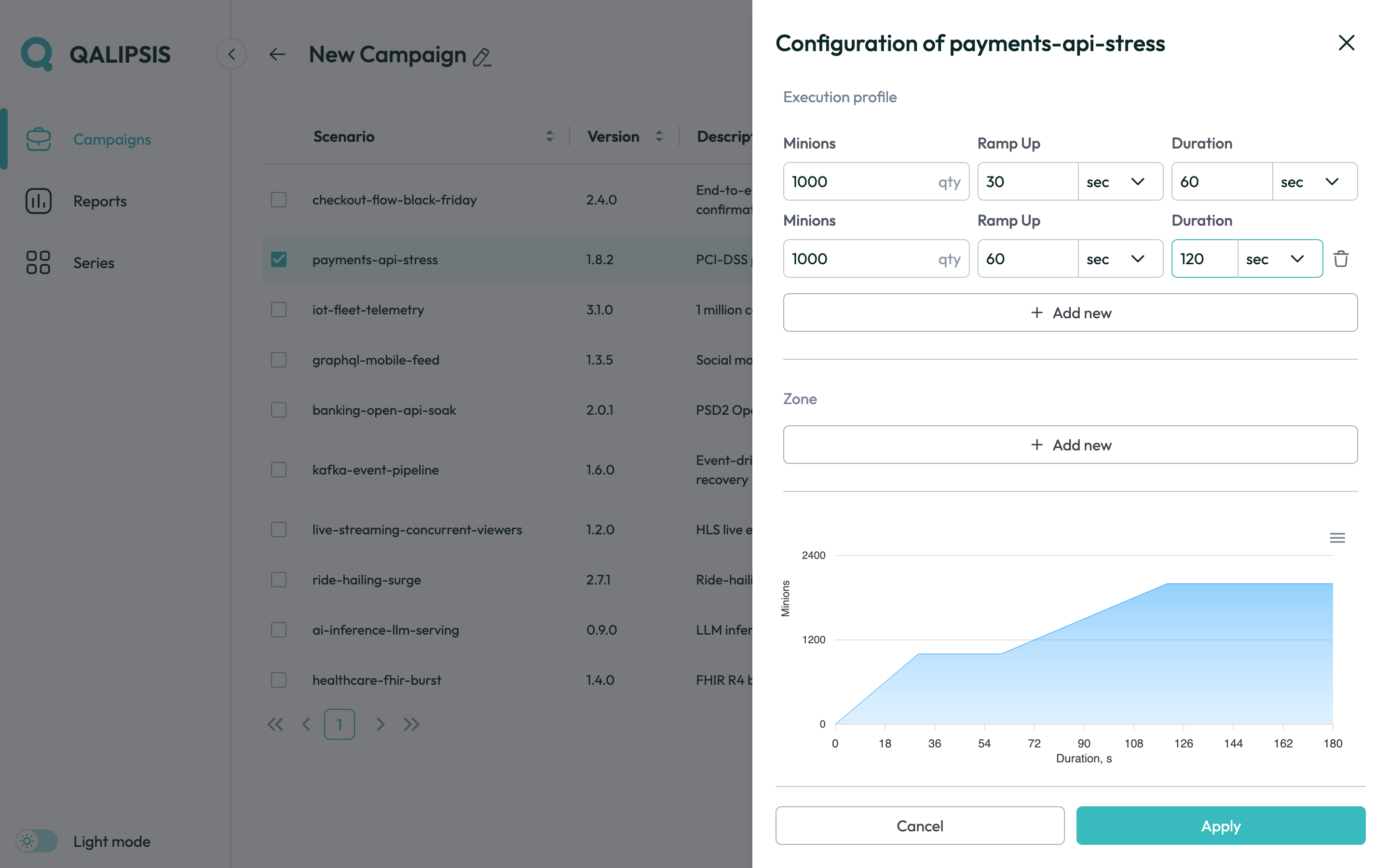
The wizard validates values against the platform limits returned by the platform configuration. Attempting to submit an invalid configuration keeps the user on the wizard and highlights the offending fields.
Back to the campaign wizard, further configuration options are available by clicking the cog on the top-right corner:
-
A timeout — maximum allowed duration; the campaign is aborted if this is exceeded. Soft timeout means that the minions will finish their current execution workflow before aborting, while hard timeout will immediately stop all minions.
-
An optional schedule — future or recurring start time.
Campaign details
Clicking a row opens the details screen of a running or completed campaign:
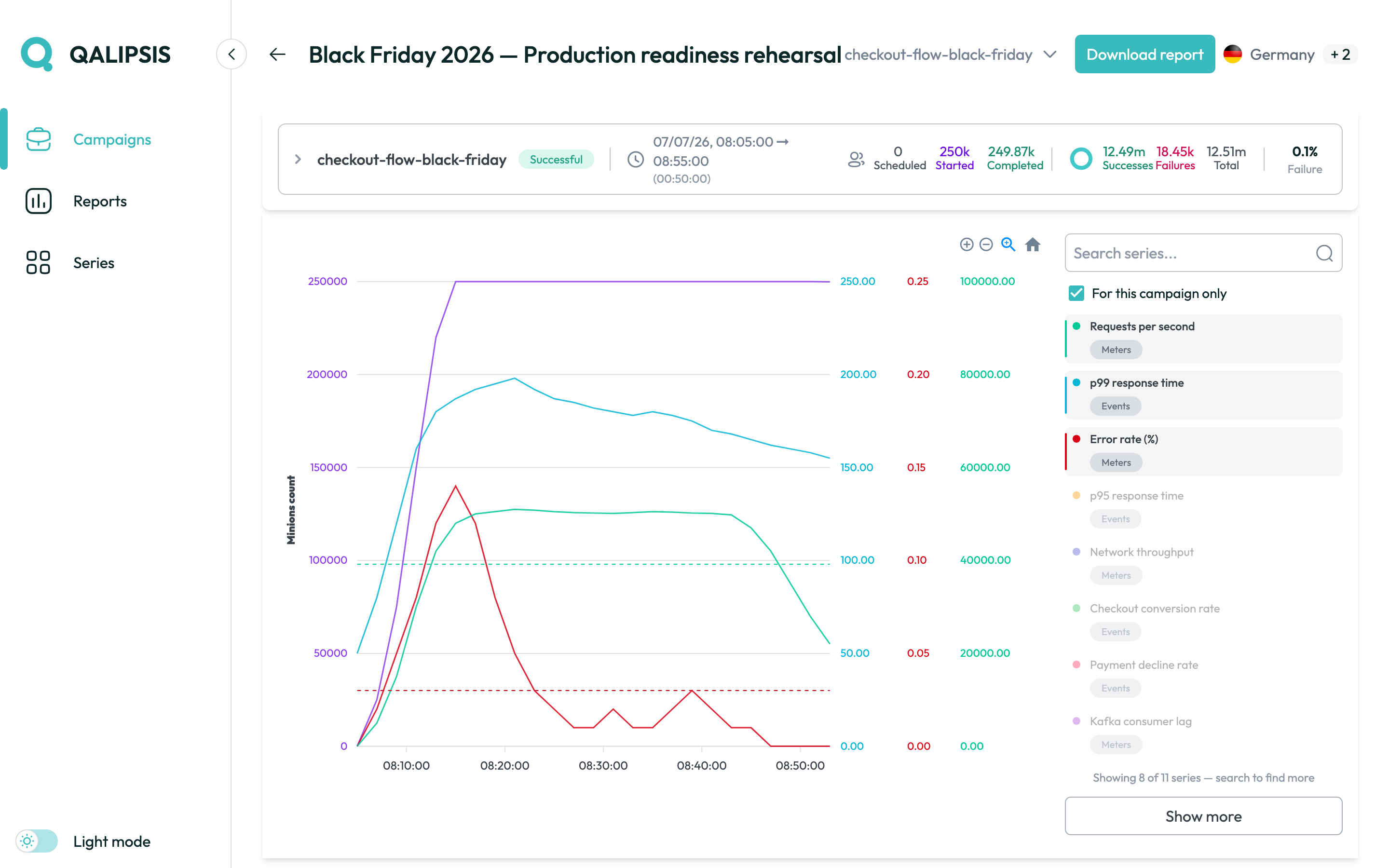
The details screen surfaces:
-
Header — campaign name, status badge, start/end timestamps, load and executions.
-
Progress panel — number of scheduled, started and completed minions; total successful and failed executions.
-
Per-scenario reports — same metrics broken down per scenario, plus any diagnostic messages emitted during execution (messages, metrics, steps, …).
-
Series chart — near-real-time chart, where you can display the data-series you defined at Series.
|
The series chart is not populated by default. You must select the series you want to visualize from the panel at the right of the chart area. |
Expanding a scenario report shows the same information, but filtered to the selected scenario. You can also expand the steps further to see the same information filtered to a specific step.
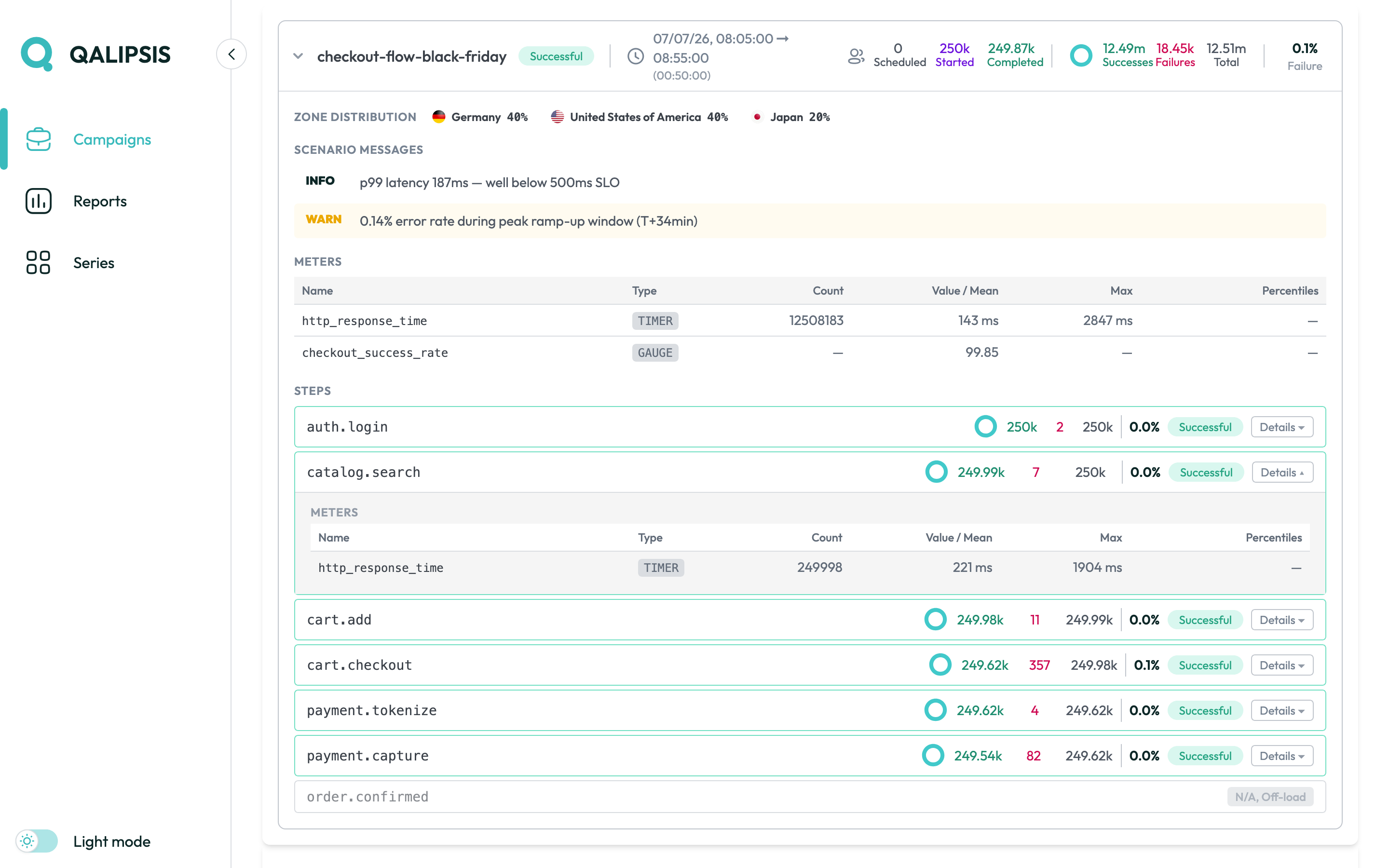
While a campaign is IN_PROGRESS, the screen polls at a short interval and updates the chart live. You can zoom in/out and pan the chart to focus on a specific time window. When the campaign is completed, the chart is frozen and you can still zoom in/out and pan to explore the data.
The scenario selector in the header also applies to the reported data and the chart.
The Download report action generates an ad-hoc HTML report for the campaign, reproducing the same information as the details screen.
|
At the time of writing, the HTML report does not include the series chart, but this is planned for a future release. |